Google Ads audit template: free download with 54 checks
A spreadsheet you can copy today: 54 checks in the order that matters, each with where to find it in Google Ads and what bad looks like, plus a scorecard that fills itself in as you go.
Last checked against Google’s documentation on 30 September 2026.
Download the Google Ads audit template
This is the audit template we use to review a Google Ads account by hand. It lists 54 checks in the order that matters, starting with conversion tracking, and each row says where to find the check in Google Ads and what a problem looks like. You add the evidence from your account, set a status, and the scorecard totals the results for you.
54checksOne row each, with where to look and what bad looks like
12areasFrom conversion tracking to recommendations
19high-priority checksThe ones that distort every other number
3tabsHow to use, Audit, and Scorecard
What’s inside the template
The workbook has three tabs. You only type in the Audit tab; the Scorecard reads from it.
Tab
What it holds
What you do there
How to use
The five steps below and links back to this guide
Read once
Audit
54 checks with Area, Check, Where to find it, What bad looks like, and a suggested priority
Fill in Evidence, Status, Fix, Owner, and Due for each row
Scorecard
Per-area counts of checked, OK, open issues, fixed, and open high-priority issues, with % checked
Nothing: it updates as you set statuses
Status is a dropdown with five values: Not checked, OK, Issue found, Fixed, and Not relevant. Rows marked Issue found turn orange and rows marked Fixed turn green, so the open work stands out when you scroll.
How to run an audit with it
The audit, in six steps
1Pick one date rangeFor example the last 30 days, compared with the 30 before.
2Start with trackingEvery later number depends on conversions being right.
3Write the evidenceThe number that proves the finding, before any opinion.
4Set the statusOK, Issue found, Fixed, or Not relevant.
5Fix by priorityHigh first; note the date of every change.
6Check backRe-open each fix after enough data to judge it.
Two habits make the difference between an audit and a list of opinions. First, keep one date range for the whole pass, so findings are comparable. Second, fill the Evidence column before you decide anything. “CTR looks low” is an opinion. “This ad group’s top five search terms took a fifth of its spend and none converted” is a finding someone can act on.
All 54 checks, by area
Here is every check in the template, grouped the same way as the spreadsheet. Conversion tracking carries the most checks because every other number in the audit depends on it.
Checks per area in the template
Conversion tracking8
Campaign settings5
Account structure4
Search terms4
Keywords5
Bidding and budgets5
Ads and assets5
Landing pages4
Targeting and audiences4
Performance Max and other types5
Change history2
Recommendations and automation3
View as table
Item
Checks
Conversion tracking
8
Campaign settings
5
Account structure
4
Search terms
4
Keywords
5
Bidding and budgets
5
Ads and assets
5
Landing pages
4
Targeting and audiences
4
Performance Max and other types
5
Change history
2
Recommendations and automation
3
Counted from the template itself. More checks does not mean more important: one broken conversion action can outweigh ten small settings.
Conversion tracking
Check
Where to find it
What bad looks like
Priority
Primary vs secondary conversion actions
Goals → Conversions → Summary
A page view, email click, or other micro-step set as primary next to real leads or sales
High
Tracking status of every action
Goals → Conversions → Summary
Unverified, Tag inactive, No recent conversions, or Needs attention on an action you bid on
High
Duplicate counting
Goals → Conversions → Summary
The same event counted by a Google Ads tag and an imported analytics conversion, both primary
High
Count setting (One vs Every)
Conversion action → Settings → Count
“Every” on lead forms or calls, so one person can count several times
High
Conversion values
Conversion action → Settings → Value
Every conversion carries the same default value when real values differ, or no value under value-based bidding
The Scorecard tab counts, for each area, how many checks you have looked at, how many are OK, how many issues are still open, how many you have fixed, and how many open issues are high priority. The last row totals the whole account. A data bar shows the share checked, so you can see at a glance which areas you haven’t reached yet.
Status of every check, one week into an auditIllustrative example
OK or not relevant57%31
Issue found17%9
Not checked yet26%14
For example: after the first sessions, most checks are OK, nine issues are open, and fourteen checks are still to do. The scorecard shows this split per area.
Resist turning the scorecard into a grade. An account with three open issues can be in worse shape than one with ten, if one of the three is a broken conversion action. Use the counts to track progress, and the priority column to decide order.
What to fix first
The template suggests a priority for each check: 19 high, 25 medium, and 10 low. Treat it as a starting point and re-rank each issue by what it costs your account and how hard it is to change.
A simple way to order the open issues
Impact ↑
Do firstHigh impact · low effort
Fix a broken or duplicated conversion action
Exclude clearly irrelevant search terms
Turn off networks nobody chose
PlanHigh impact · more effort
Rebuild a campaign that mixes brand and non-brand
Change bid strategy to fit conversion volume
Rework a landing page that doesn’t match the ad
BatchLower impact · low effort
Add missing sitelinks and callouts
Remove leftover bid adjustments
Tidy paused and duplicate keywords
Skip for nowLower impact · more effort
Restructure ad groups that already perform
Chase optimization score points
Rewrite ads that are working
Effort →
Common findings placed by typical impact and effort. Your own account decides the final order.
Using it in Google Sheets or Excel
Excel: open the XLSX. The Audit tab is filtered and frozen on the header and first columns.
Google Sheets: press Copy to Google Sheets and Google puts your own copy in your Drive, dropdowns, highlighting, and Scorecard included. Or import the XLSX with File → Import → Upload.
CSV: the Audit tab only, for other tools or project trackers. Status starts as “Not checked” on every row.
If you audit client accounts, make one copy per account and name it with the account and the date range. The Owner and Due columns turn the finished audit into a work plan you can share. Our guide on auditing a prospect’s account covers access and how to present findings.
Running the checks every day
A spreadsheet audit is a snapshot. Search terms change every day, budgets run out on busy days, and a tag can stop firing after a site release. The checks that move fastest, like search terms, spend against budget, and conversion volume, are worth looking at weekly or daily.
Demo data
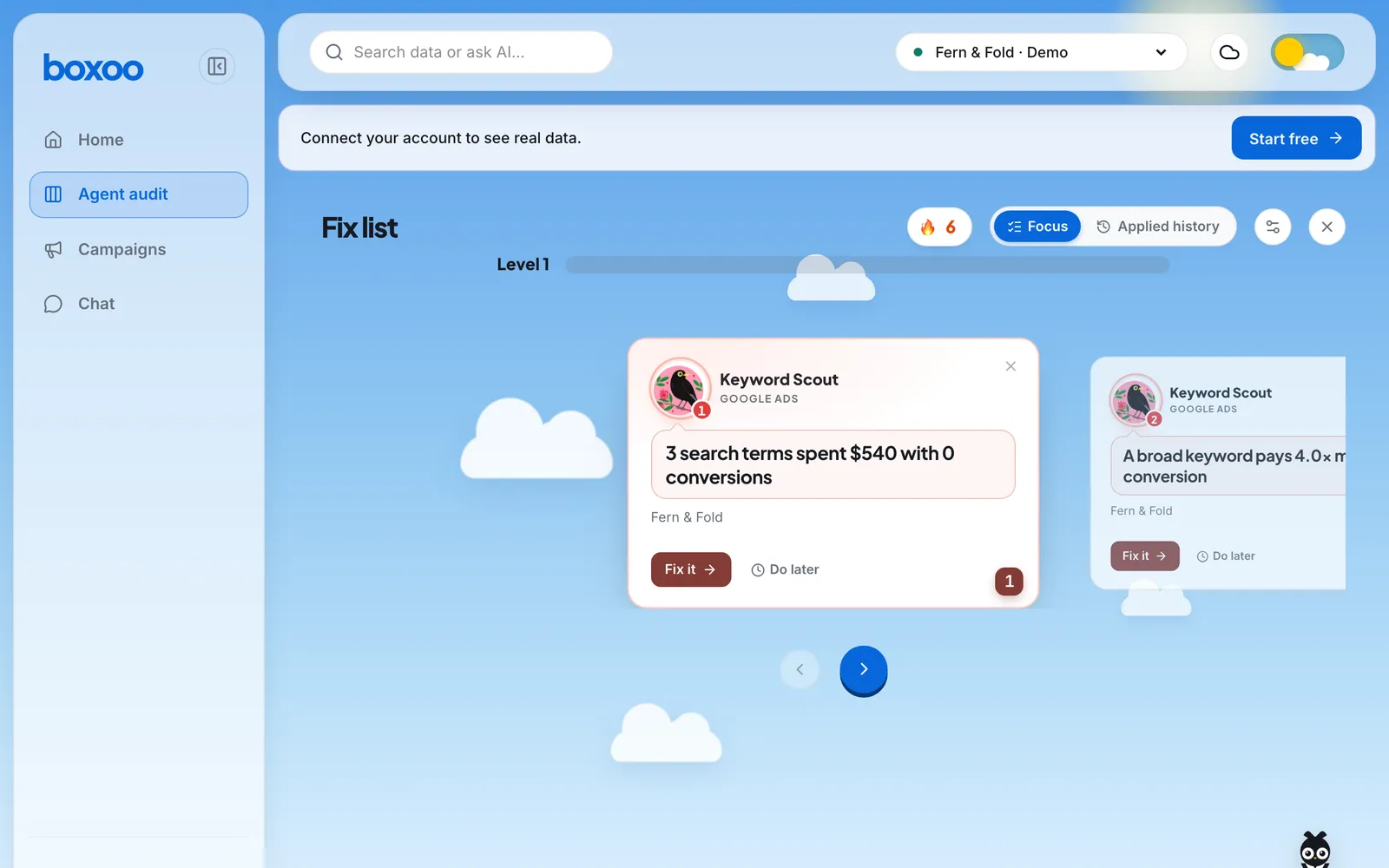
Boxoo’s Fix list: each finding from the daily review is a case, grouped into levels so the most important comes first.
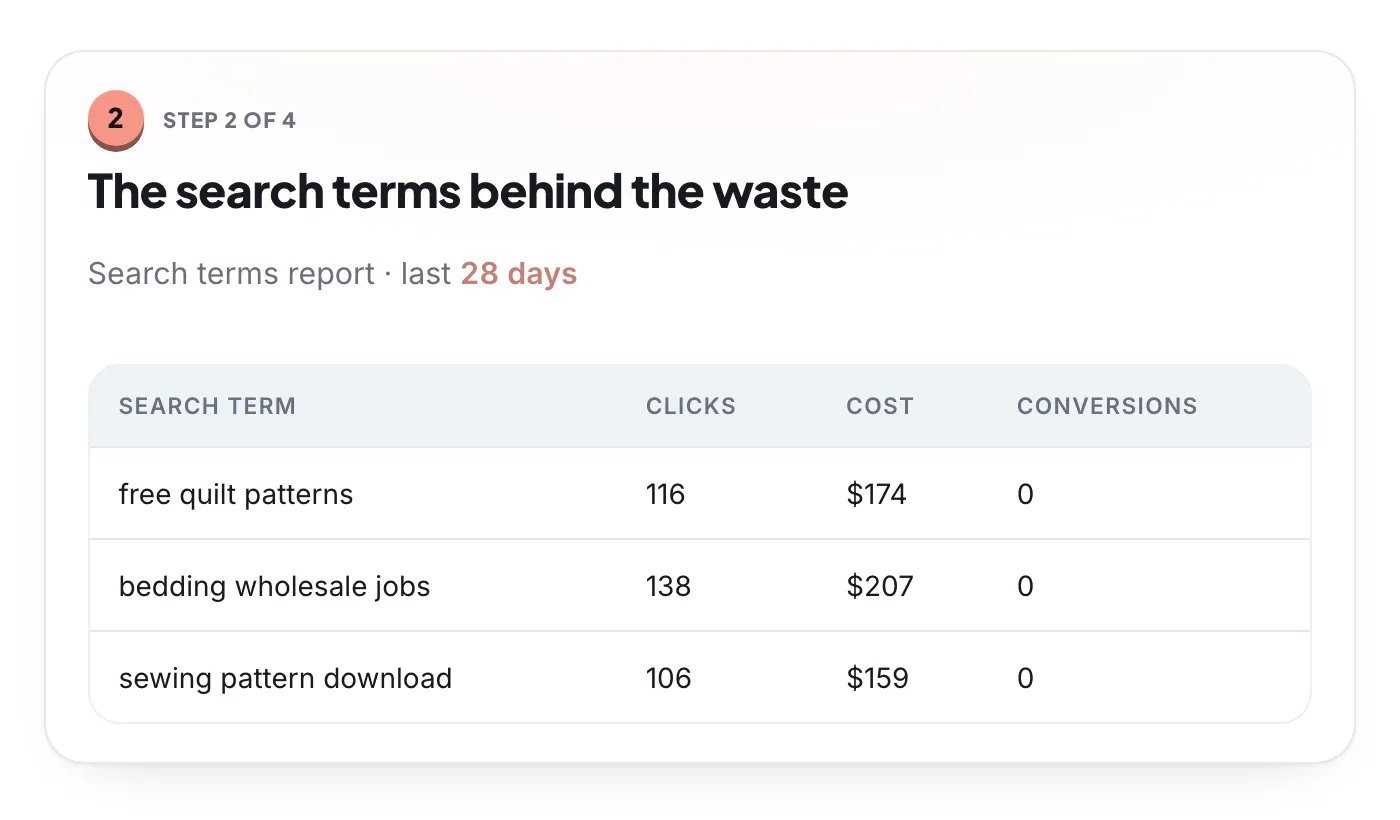
That is the job Boxoo’s agents do. They go through checks like these on your live account every day and file each finding as a case. Each case opens with the evidence behind it, like the search terms below, and most come with a fix you can apply in one click once you have read it.
Demo data
The evidence step of a case: the search terms that spent without converting, straight from the search terms report.
Questions
Is this Google Ads audit template free?
Yes. Download the XLSX or CSV, copy it, change it, and share it with your team or clients. There is no sign-up to download it.
Does the template work in Google Sheets?
Yes. Press Copy to Google Sheets and Google makes your own copy in your Drive, with the Status and Priority dropdowns, the highlighting, and the Scorecard formulas. You can also import the XLSX with File → Import → Upload. The CSV holds the Audit tab only.
How long does a manual audit with the template take?
For a small account with a few campaigns, a careful pass usually takes a few hours. Larger accounts take longer because search terms, keywords, and ads grow with the number of ad groups. Tracking checks come first because the rest of the audit depends on them.
What is the difference between this template and the audit checklist?
The checklist guide explains twelve areas in reading order. The template breaks those areas into 54 separate checks you can mark one by one, with columns for your evidence, the fix, an owner, and a due date, plus a scorecard that totals the results.
Skip the spreadsheet: run the checks on your live account.
Boxoo’s agents go through these checks on your Google Ads data every day and file each finding as a case with the evidence and, for most, a fix you approve.