Last checked against Google’s documentation on 29 September 2026.
How to optimize Google Ads: a routine, ordered by impact
Google Ads optimization is a routine, not a one-off fix. Work in order of impact: conversion tracking first, then the searches you pay for, then budgets and bids, ads and assets, landing pages, targeting, account structure, and finally experiments. Each step depends on the one before it. There is no point tuning bids against conversions you are counting wrong, or rewriting ads that show on searches you should have excluded.
Split the work by how fast each area changes. Search terms and spend move every day, so check them weekly. Bids, ads, and landing pages need a few weeks of data, so review them monthly. Structure and testing are quarterly work. The rest of this guide gives, for each area, what to look at in Google Ads and what action to take. If you are taking over an account or starting from scratch, run the full Google Ads audit checklist once first, then use this routine to keep it in shape.
One rule applies throughout: change one thing at a time, write down what you changed and why, and compare equal periods afterwards. Google’s change history keeps two years of changes, which helps, but your own notes explain the reasoning.
- MeasureThe right conversions, counted once, with values that reflect what they are worth.
- Stop wasteSearches, places and networks that spend without results.
- Grow what worksKeywords, bids, budgets, ads and pages behind the campaigns that convert.
- VerifyJudge each change after enough data and conversion lag, then keep or reverse it.
The Google Ads optimization checklist at a glance
| Cadence | Look at | Typical action |
|---|---|---|
| Weekly | Conversions vs your records, search terms, spend vs budget, change history | Fix tracking, add negatives, pause waste, move budget |
| Monthly | Cost per conversion vs target, impression share, ad and asset performance, landing pages | Adjust targets and bids, replace weak ads, fix pages |
| Quarterly | Locations, schedule, devices, audiences, structure, auto-apply settings | Restructure, change targeting, run an experiment |
- Daily · 5 minHealth, not tuning
Spend against budget, conversions still recording, disapproved ads or policy notices. Fix what broke; leave bids and targets alone.
- Weekly · 30–60 minWaste and targets
Search terms and negatives, target versus actual by campaign, lost impression share from budget and rank, change history, and new recommendations reviewed rather than accepted.
- MonthlyGrow what works
Move budget toward the best cost per conversion or return, promote converting searches, replace weak headlines, and read the landing pages, location, device and schedule reports, Performance Max channels, and experiment results.
- QuarterlyFoundations
Conversion actions and values against your own records, account structure, the full audit checklist, and the season ahead with the big tests you want to run.
1. Conversion tracking
Weekly. Compare conversions in Google Ads with your own records (orders, form entries, calls answered) for the same days. A gap that suddenly widens means a tag, form, or thank-you page broke.
What to look at. Open Goals → Conversions and check:
- Which actions are primary. Google’s primary and secondary conversion actions page explains that primary actions feed the Conversions column and bidding; secondary actions are for observation.
- Tracking status for each action, and duplicates of the same event counted twice.
- Counting (One vs Every) and whether values reflect what conversions are actually worth.
Action. Demote micro-steps to secondary, fix or remove duplicates, set lead actions to count One, and pass real values where you have them. If conversions fell to zero overnight, stop and fix that before anything else. See conversion tracking setup, one vs every counting, and conversions dropped to zero.
2. Search terms and negative keywords
Weekly. Open Insights and reports → Search terms and sort by cost. Google’s search terms report page notes that some low-volume searches are left out of the report for privacy, so the list won’t add up to your full spend. Read what is there anyway: it is where most waste shows up.
Action.
- Add irrelevant searches (products you don’t sell, job seekers, free or DIY intent) as negative keywords, at campaign level or in a shared list.
- Remember Google’s negative keywords don’t match close variants, so add plurals and misspellings you see.
- Add converting searches you don’t yet target as keywords, in the ad group whose ad and page fit them best.
- Pause keywords that have spent well past your target cost per conversion with none, after checking they aren’t new.
The search terms report guide covers reading the report, and how to find negative keywords gives a step-by-step method.
- Search terms that converted55%5,500 spend
- Relevant terms, no conversion yet30%3,000 spend
- Irrelevant to the offer15%1,500 spend
3. Budgets and bidding
Weekly: budgets. Look at each campaign’s spend against its budget and its cost per conversion. A campaign marked “Limited by budget” that converts at a good cost is losing sales; a campaign spending fully with poor results is wasting money. Move budget from the second to the first. Remember that daily spend can reach up to twice the average daily budget while the monthly charge stays within 30.4 times it, as Google explains in managing your spend.
Monthly: bidding. Compare actual cost per conversion or return on ad spend against the target. A target far tighter than what the campaign achieves throttles volume; one far looser than you can afford wastes money. Move targets in steps rather than in one jump.
- Use the impression share columns to see why ads didn’t show. Lost to budget and lost to rank need different fixes; see lost impression share: budget vs rank. Google advises against using Lost IS (budget) with Maximize conversions, which is designed to spend the full budget; use the budget simulator there instead.
- Check the bid strategy status. After a change Google shows “Learning”, and its learning period page says calibration typically takes one to two conversion cycles. Don’t judge or change it again before then.
- Clear out old manual bid adjustments on Smart Bidding campaigns; Google’s bid adjustments page says manual adjustments aren’t supported with Smart Bidding, apart from -100% adjustments for some types.
If a target campaign stops spending, read why Target CPA stops spending. Our Smart Bidding guide explains when to use each strategy.
4. Ads and assets
Monthly. Open Campaigns → Ads and check that every enabled ad group has an approved, serving responsive search ad. Google’s responsive search ads page recommends at least two RSAs with Good or Excellent ad strength per ad group. Then review assets: sitelinks, callouts, structured snippets, calls, and images.
Action.
- Rewrite headlines that repeat each other, and make sure some headlines use the words people actually searched.
- Replace ads that are disapproved, limited by policy, or rated Poor.
- Add missing sitelinks, callouts, and structured snippets; remove assets that point to dead pages or old offers.
- Pin only text that must appear in every ad, such as a required disclaimer. Google arranges unpinned assets itself to fit each search.
Click-through rate is the quickest read on ad fit; see how to improve Google Ads CTR.
5. Landing pages
Monthly. Open Insights and reports → Landing pages; Google’s landing page report breaks performance down by URL. Find pages that take a large share of clicks with a conversion rate well below the rest.
Action. Open those pages on a phone. Check load speed, that the page matches the ad’s promise, that prices and availability match, and that there is one clear next step. Send ads to the page for that product or service, not the home page. Landing page experience is one of the three parts of Quality Score, along with expected click-through rate and ad relevance. Google calls Quality Score a diagnostic, not an input in the auction, so use it to find which of the three to fix. Our Quality Score guide covers each component.
6. Targeting: locations, schedule, devices, audiences
Quarterly, or monthly on larger accounts. Review performance by location, hour and day, device, and audience. In Insights and reports → When and where ads showed, compare targeted locations with matched locations.
- Locations. Google’s default location option reaches people in, regularly in, or interested in your locations. Google’s advanced location options page describes the stricter Presence option. If you only serve people physically there, switch to it and exclude areas you don’t serve. See ads showing outside your target location.
- Schedule. If conversions never happen in certain hours but spend does, narrow the ad schedule or lower bids for those hours on manual bidding.
- Devices. A device with a far higher cost per conversion is either a bid problem or a page problem. Check the page on that device before cutting it.
- Audiences. Add relevant audience segments in observation mode to see which groups convert better without narrowing reach.
7. Account structure
Quarterly. Structure should follow real differences: budgets, locations, margins, or clearly different intents. Look for campaigns that compete for the same searches, ad groups with dozens of unrelated keywords, many ad groups too small to collect data, and brand and non-brand searches mixed in one campaign.
Action. Split brand from non-brand so you can see what new customers cost. Merge thin ad groups and campaigns so bidding has enough data. For Performance Max, read the channel performance report and check whether it takes your own brand searches; see the channel performance report and Performance Max cannibalizing brand search.
8. Experiments
Quarterly. When you want to test a large change, such as a new bid strategy, broad match, or a different landing page, run it as an experiment rather than switching the whole campaign. Google’s custom experiments page explains that an experiment shares the original campaign’s traffic and budget, that you choose the split, and that for Search you can split by cookie or by search. You can schedule up to five experiments per campaign but run only one at a time.
Action. Test one variable. Avoid editing the original campaign while the experiment runs, since Google notes that makes results harder to read. Run it until both arms have enough conversions to compare, then apply the winner or end it.
- Reported today
- Two weeks later
View as table
| Reported today | Two weeks later | |
|---|---|---|
| Week 1 | 50 | 50 |
| Week 2 | 52 | 52 |
| Week 3 | 49 | 49 |
| Week 4 | 51 | 51 |
| Week 5 | 41 | 50 |
| Week 6 | 27 | 52 |
Google’s recommendations and optimization score
Google’s optimization score is an estimate of how well an account is set to perform, from 0 to 100%. Applying or dismissing a recommendation both change it, so a high score is not the same as a profitable account. Review recommendations against your own numbers and dismiss the ones that don’t fit.
Check Recommendations → Auto-apply settings every quarter. Types such as new keywords, broad match, or bid strategy changes can alter the account without anyone reviewing them. Our guide to auto-apply recommendations explains each type. Also note that from June 2026 Google has been relabelling “Maximize conversions with a Target CPA” as “Target CPA” and the value equivalent as “Target ROAS”; Google says bidding behaviour is unchanged.
Google Ads best practices and tips that hold up
- Judge on business outcomes. Cost per customer or return on ad spend, not clicks or optimization score.
- Compare fair periods. At least 14 days against the previous period of the same length, and against last year for seasonal demand.
- Give bidding enough data. Fewer, better-funded campaigns learn faster than many thin ones.
- Rank fixes by money at stake. A broken conversion action outweighs twenty missing callouts.
- Leave learning alone. Repeated target and strategy changes reset calibration.
- Diagnose before reacting. When results fall, find the cause first; the performance drop guide walks the tree from return on ad spend down to the broken node.
- Fix a broken or double-counted primary conversion
- Exclude irrelevant search terms that spend
- Remove networks or locations nobody chose
- Bring targets in line with actual CPA or ROAS
- Move to value-based bidding with real values
- Rebuild the landing page behind the most spend
- Test a new bid strategy or broad match in an experiment
- Separate brand and non-brand campaigns
- Add missing sitelinks, callouts and images
- Clear bid adjustments Smart Bidding ignores
- Replace the weakest headlines
- Chasing a 100% optimization score
- Splitting campaigns by device or hour without a reason
- Rewriting every ad at once
Where to go deeper
Each step above has its own guide. By situation:
- Small or new account: Google Ads for small business covers setup, budget, and local targeting.
- Tracking: enhanced conversions and conversion tracking setup.
- Spend: spending more than the daily budget and lost impression share.
- Campaign types: Performance Max, negative keywords in Performance Max, and AI Max for Search.
- What changed at Google: Google Ads updates in 2026.
- Tools: AI tools for Google Ads and the Boxoo Google Ads optimization tool.
Running the routine every day
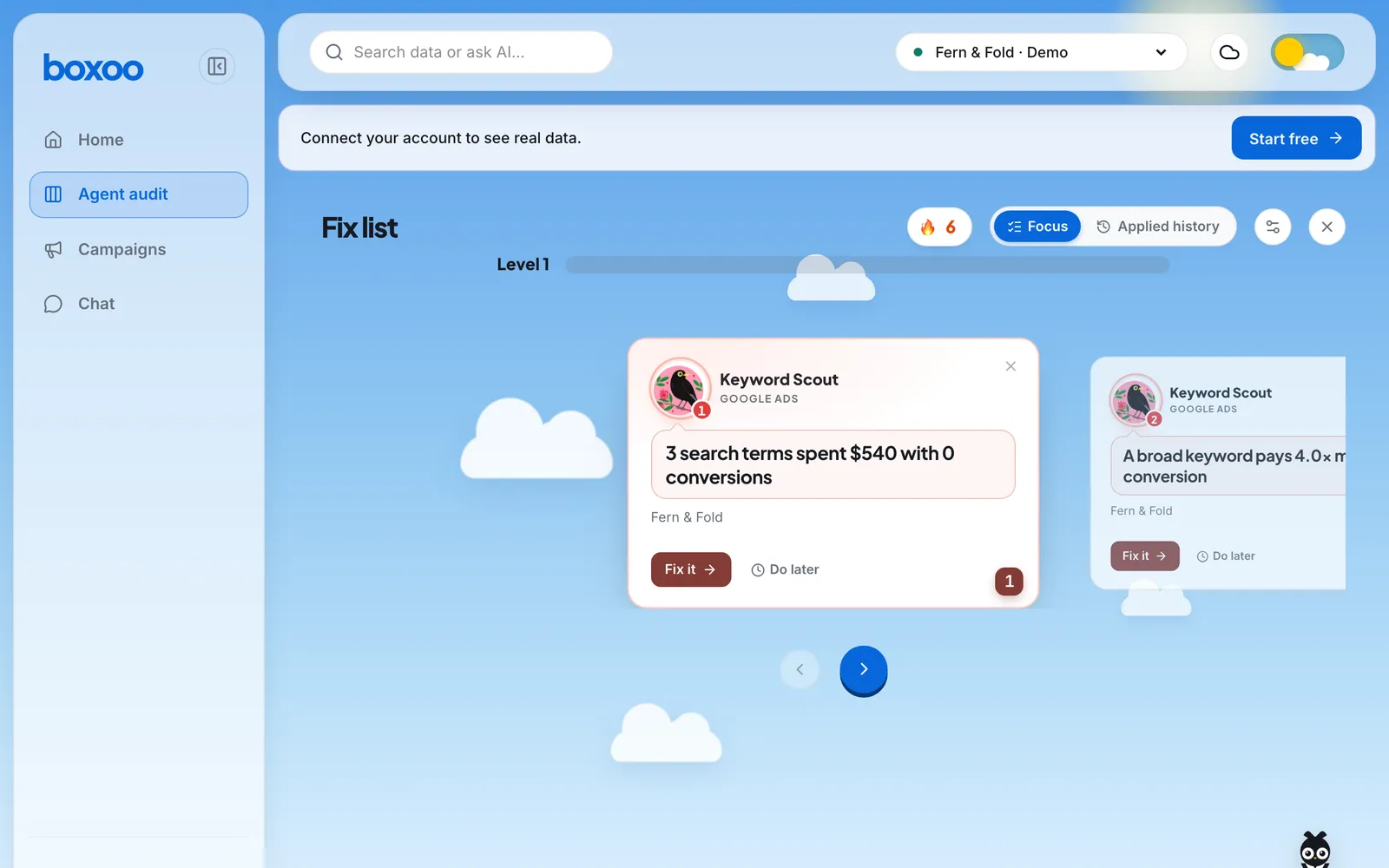
Boxoo runs this routine on a Google Ads account every day with specialist agents for tracking, search terms and keywords, budgets and bidding, ads and landing pages, targeting, and structure. Each finding is filed as a case with the evidence from the account and a prepared fix: adding negative keywords, pausing or adding keywords, changing budgets, bids, or targets, creating a responsive search ad, adding sitelinks and callouts, or excluding a location. Nothing changes until you press Apply, and most applied changes keep an undo. What the API can’t change, such as landing pages, match type edits, or website tags, comes to you as exact steps.
Run the free Google Ads audit to see what the routine finds on your account.