Last checked against Google’s documentation on 30 September 2026.
Is a free Google Ads audit worth it?
Usually, yes, if it does three things. It shows the numbers behind every finding. It works with read-only access. And it ranks what it found by the money at stake, so you know what to fix first. A free audit that gives you a grade, a list of generic problems and a quote for managing your account is a sales pitch with a report attached.
Every free audit is paid for somehow. Agencies use it to win a contract, software tools use it to start a subscription, and Google’s recommendations are there to help you adopt Google Ads features. None of that makes an audit wrong. It tells you where to double-check.
A good audit also knows its limits. It can read your campaigns, search terms and conversion data. It can’t see your margins, which leads became customers (unless you send that back to Google Ads), or what you have in stock, so every finding has to be judged against those.
A note on who is writing: Boxoo, which publishes this guide, offers its own free Google Ads audit. This page is about judging any audit, ours included.
The kinds of free audit, and why each is free
Free audits come from three places, plus the option of doing it yourself. They differ less in what they check than in who does the checking, what they need from you, and what they hope you do next.
| Kind | Who does it | What it costs you | What it needs | Their incentive | What you get |
|---|---|---|---|---|---|
| Agency pre-sale audit | A PPC agency or freelancer | No fee; time on calls | User access to your account, or a link to their manager account | Win the management contract | A deck or a call; depth depends on the person |
| Automated audit tool | Software connected to your account | No fee for the audit; often a paid plan later | Sign-in through Google’s authorization screen | You keep using the tool | A list of findings, often with a score |
| Google’s own recommendations | Google’s systems, sometimes with a Google specialist | Free | Nothing extra; it’s in every account | You adopt features Google expects to lift performance | Optimization score and a list of recommendations |
| Do it yourself | You or your team | Your time | Your own login | Your own results | As deep as your time allows |
Agency audits are only as good as the person doing them. A careful one spends real time in your account and comes back with a short list of specific problems and the numbers behind them. A weak one reuses the same deck for every prospect. Either way the audit’s job is to win the account, so expect the findings to lead towards “we should manage this.” Our guide to how agencies audit a prospect’s account shows what the careful version looks like.
Automated tools run a fixed set of checks on your live data. They are consistent, they read every row of a long report, and they are easy to repeat next month. They also only know what their rules and your account tell them, and many grade the account against thresholds the vendor chose.
Google’s recommendations are generated from your account’s performance history, its settings, and trends across Google, according to Google’s recommendations help page. Optimization score, from 0 to 100%, is Google’s estimate of how well the account is set to perform, and it changes as you apply or dismiss recommendations. It is a useful list of ideas. It is not a measure of whether the account made you money; see why 100% isn’t an audit.
Doing it yourself is the slowest option, but you control the access and you already know the business context no outsider has.
What a good audit checks, in order
Whoever runs it, a useful audit covers the same ground in roughly the same order. Tracking comes first, because every later judgement depends on conversions being counted correctly.
- Conversion tracking: which actions are primary, tag status, duplicates, counting settings.
- Campaign settings: networks, locations and location options, languages, schedules.
- Search terms: spend on searches that don’t match what you sell.
- Bidding and budgets: whether the strategy fits the data, targets are realistic, and campaigns that convert well are held back by budget.
- Ads and assets: approvals, ad strength, missing sitelinks and other assets.
- Landing pages: whether the page matches the ad and works on a phone.
- Targeting: results by location, device, time and audience.
- Performance Max and other campaign types: channel mix, brand overlap, asset groups.
- Change history: what changed around each rise or drop.
The Google Ads audit checklist walks through each area with where to find it and what bad looks like, and the free audit template breaks it into 54 checks you can mark off. Use either to see what a free audit skipped.
- Read-only accessEnough to see everything, not enough to change it.
- Tracking firstIf conversions are wrong, the rest waits.
- Review in orderSettings, search terms, bidding, ads, pages, targeting.
- Evidence per findingThe rows, the dates, the spend involved.
- Rank by moneyWhat each finding costs or could earn.
- You decideNothing changes until you approve it.
What access an audit needs
Google Ads has five access levels. An audit only needs to read, and one of them is built for exactly that.
| Access level | What Google says it can do | For an audit |
|---|---|---|
| Admin | Everything, including managing who has access and linking accounts | Never needed |
| Standard | Edit campaigns and see reports, but not manage users | Only if you want the auditor to make changes later |
| Read only | View campaigns, reports and planning tools; no edits | The right level |
| Email only | Receive notification emails and reports | Too little to audit |
| Billing | Billing information and payments; no campaign edits | Not relevant |
To give a person access, open Access and security in the Admin menu, select the plus button, enter their email and pick the level, as Google describes in Manage access to your Google Ads account. Some agencies instead ask to link your account to their manager account. That is normal, but it is also access, so know how to end it (below).
Automated tools connect through Google’s own authorization screen, not with your password. One detail matters here: Google’s developer documentation says the Google Ads API uses the same scopes for read-only and read-write work and follows the same user roles as Google Ads itself. So the consent screen doesn’t tell you whether a tool will only read. What caps it is the access level of the Google user who authorizes it, plus the tool’s own rules. If you want a tool to be strictly read-only, authorize it with a user who has Read only access. If you want it to make changes for you, check that it asks before each one.
How to remove access when the audit is done
- A person: in Admin → Access and security, find the user and select Remove access in the Actions column (Google’s steps).
- A manager account link: in the same place, open the Managers sub-page, select Remove access next to the manager account, review the preview, and confirm Unlink. You need admin access to do it (Google’s steps).
- An app: open your Google Account’s linked apps page, select Access to your Google Account, pick the app, then See details → Remove access. Google notes this stops future access but doesn’t delete data the app already has, so ask the provider to delete it (Google Account Help).
What no audit can see from the account
An audit that reads only Google Ads sees clicks, cost, conversions and the settings behind them. The facts that decide whether a finding matters often live somewhere else:
- Margins. A conversion value may be a placeholder, and two products with the same price can earn very different profit.
- Lead quality. Which leads became customers, unless you import that back into Google Ads.
- Offline and phone sales that never reach the account.
- Stock and capacity. A campaign “limited by budget” may be capped on purpose because you are fully booked.
- Seasonality and outside events. A drop can be normal for the month, or caused by a competitor’s sale.
- Your goals. Growth or profit, new customers or repeat ones, markets you are entering or leaving.
- Past decisions. An odd setting may be a deliberate test, a legal limit, or a lesson learned.
This is why the same number can point two ways. An audit that ranks campaigns by cost per conversion can pick the wrong winner when the campaigns bring leads of very different quality:
- Cost per conversion (visible in Google Ads)
- Cost per customer (needs your own records)
View as table
| Item | Cost | Group |
|---|---|---|
| Campaign A · per conversion | 40 | Cost per conversion (visible in Google Ads) |
| Campaign B · per conversion | 25 | Cost per conversion (visible in Google Ads) |
| Campaign A · per customer | 133 | Cost per customer (needs your own records) |
| Campaign B · per customer | 313 | Cost per customer (needs your own records) |
Red flags in a free audit
- Findings without numbers. “Your Quality Scores are low” or “the structure is outdated” with no date range, no rows and no spend attached. You can’t check it, so you can’t act on it.
- The “your account is a mess” pitch. A shock headline or a failing grade, and every fix leads to hiring the auditor.
- Asking for admin access or a password, or asking to link a manager account without explaining how you remove it afterwards.
- A rebuild before tracking is checked. If conversions are counted wrong, every “this campaign underperforms” is built on bad data. Fix counting first (see one vs every conversion); restructure later, if at all.
- Benchmark scores. Your click-through rate or conversion rate compared with an “industry average” that has no source. Averages mix businesses with different prices, countries and goals. Your own history is the better yardstick.
- Promised savings before any evidence. A percentage improvement quoted before anyone has looked at your conversion data or your margins.
- A higher optimization score as the goal. Agencies in the Google Partners program need a minimum 70% optimization score on their registered manager account, and Google leaves them free to dismiss recommendations that don’t fit a client’s goals. A good partner meets that without applying everything. See auto-apply recommendations for the types to review by hand.
- No stated limits. Every audit misses something. One that never says what it couldn’t see is claiming more than it can know.
How to judge each finding
Ask three questions of every finding, in this order.
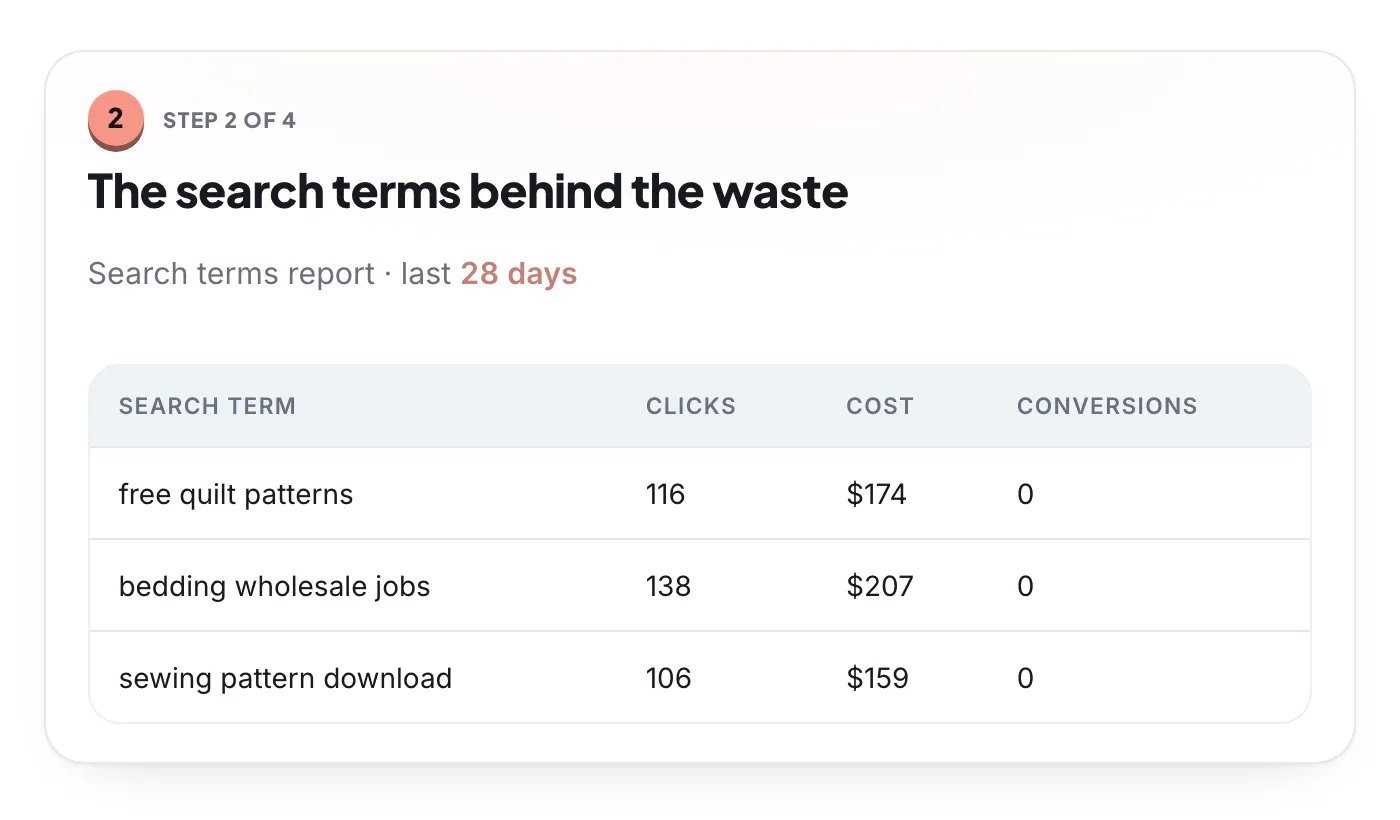
- What is the evidence? A finding should name the campaign, ad group or search terms, the date range, and the numbers: clicks, cost, conversions. You should be able to open Google Ads and find the same rows yourself. If you can’t, it is an opinion.
- How much money does it touch? Look at the spend involved over the period, not how alarming the finding sounds. Search terms that took a fifth of a campaign’s spend with no conversions matter more than twenty missing callouts.
- How easy is it to undo? Adding a negative keyword or pausing a keyword is quick to reverse. Switching bid strategy or rebuilding campaigns takes weeks to read and is harder to walk back. The harder the undo, the stronger the evidence should be. Our guide to undoing changes in Google Ads covers what can be reversed.
Then sort the findings. Impact is the money in question; effort is the work plus the risk of getting it wrong.
- Wrong action set as primary conversion
- Irrelevant search terms with spend and no conversions
- Location option reaching people you don’t serve
- Landing page that doesn’t match the ad
- Bid strategy or target that doesn’t fit the data
- Performance Max taking brand searches
- Missing sitelinks or callouts
- Old bid adjustments Smart Bidding ignores
- Poor ad strength on low-spend ad groups
- Restructuring low-spend ad groups for tidiness
- Applying every recommendation to raise the score
What to do with the results
An audit is a list of decisions, not a to-do list. Settle tracking first, make the few changes that matter most, and measure each one before adding more. Changing ten things in a week makes it impossible to tell which one helped.
- Day 1Settle tracking
Confirm or fix every tracking finding. Until conversions are right, the other findings are provisional.
- Week 1Make the do-first changes
Write down each change, the date, and the number it should move. Keep the list short enough to read the effect.
- Weeks 2–4Read the effect
Compare the weeks after each change with the weeks before, allowing for customers who convert days after the click. Undo what made things worse.
- MonthlyLook again
Search terms, budgets and tracking drift. Re-run the checks, or keep something watching them.
Keep the audit next to your change history, which Google’s change history guide shows alongside clicks, cost and conversions. When a number moves, you can see which change came before it.
Finally, decide who makes the changes. You can do them yourself with the audit as your list, hand them to an agency, or use a tool that prepares them for approval. Whichever you pick, keep the same rule the audit had to follow: every change needs evidence, a reason, and a way back.